Getting started
Integrations and automations
Connect your inbox, calendar or documents to your AI team, choose who has access, and switch on ready-made automations.
On this page
In short: the Integrations page connects your tools (Gmail, Google Calendar, Notion, Telegram…) to your AI team, once. The Automations tab switches on ready-made recipes with one switch. Nothing is sent, published or paid without your click.
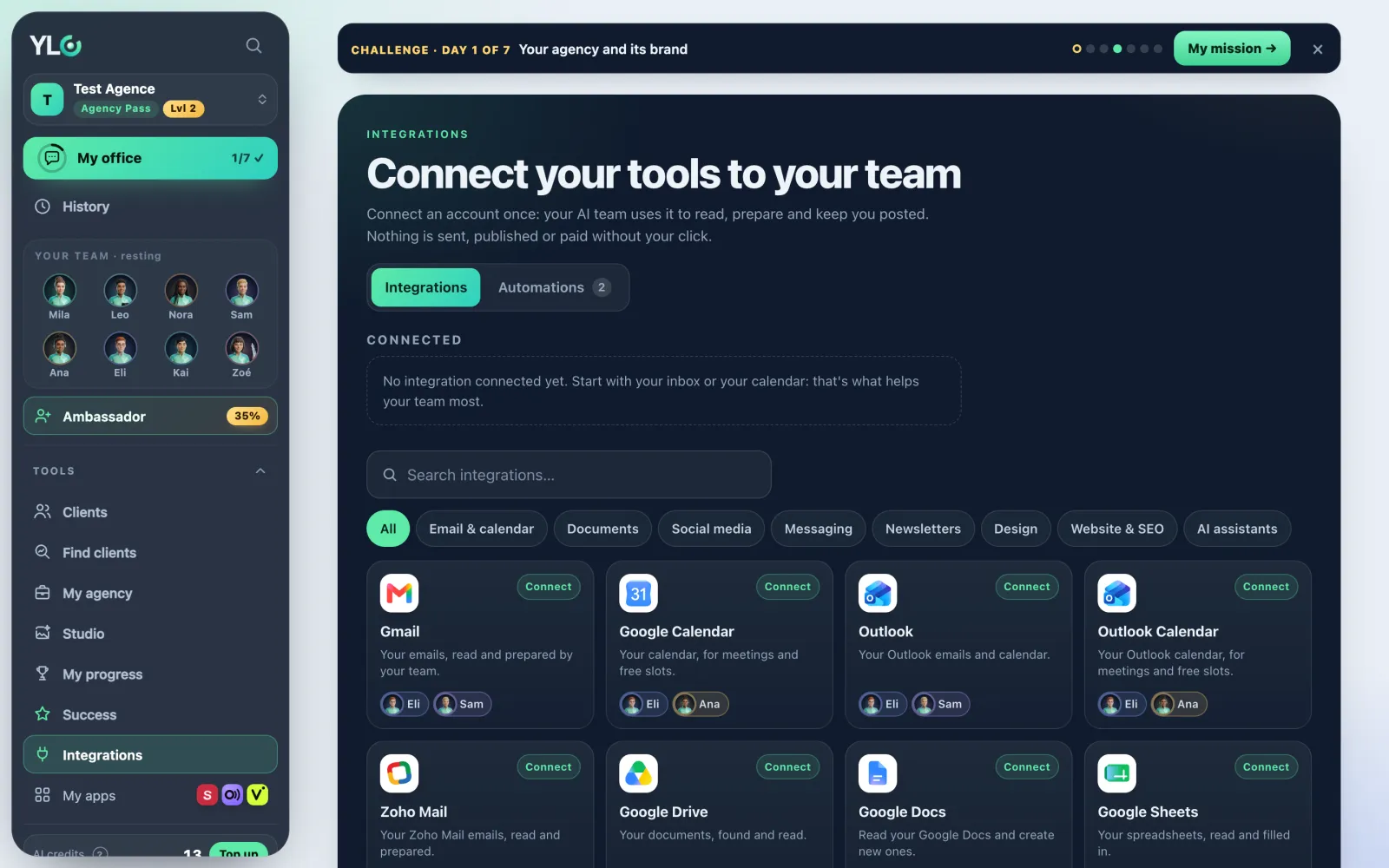
Open the page
- In the bar, open Tools, then tap Integrations. It's also in your account menu.
- At the top, two tabs: Integrations (the catalog) and Automations (the recipes). A small number next to them shows how many are connected or switched on.
A connection belongs to your account: both your spaces, My business and My agency, share it.
Connect a tool
- Look at Connected: what you've already connected. If it's empty, start with your inbox or your calendar: that's what helps your team most.
- To find a tool, type its name in Search integrations…, or tap a category: Email & calendar, Documents, Social media, Messaging, Newsletters, Design, Website & SEO, AI assistants. All shows them all again.
- Tap a card: its details open.
- Tap Connect in 1 click. A small window opens so you can give your consent at Google, Microsoft or the service. It may name “Composio”: it's the partner that holds this connection for YLC.
- Give your consent. The small window closes by itself and the page shows “Connected: your team can use it.”
On a phone, or if your browser blocks the small window, the connection opens in the same tab, then brings you back to the page.
What each card says
- Connected: it's on.
- Connect: not connected yet, tap the card.
- Reconnect: the connection expired. Open the details and tap Reconnect.
- In its app: it's connected somewhere else. Google Search Console is connected in Ancra (Open Ancra button).
- Not open yet: not available on YLC yet.
- Agency Pass: publishing on TikTok, Instagram and YouTube needs the Agency Pass.
The details of an integration
- What your team can do with it: each employee and what they do with it. For example, for Gmail, Eli reads and searches your emails, Sam prepares reply drafts.
- Who has access: once the tool is connected, one switch per employee. Switch an employee off: they won't see this connection in their chat anymore. Switch them back on anytime.
- At the bottom, a line says what's safe. For example: “Nothing is ever sent: drafts stay in your Gmail, you send them yourself.”
- Disconnect removes the connection, after a confirmation: “Your team won't have access anymore.”
A few work a little differently:
- Telegram: tap Connect in 1 click. A code appears: send it to the bot (Open Telegram button). Then you talk to your whole team from your phone.
- Canva: Connect Canva takes you to your account's Canva page.
- Claude · ChatGPT: the details give you an address. Tap Copy and add it as a connector in Claude or ChatGPT. Connected assistants show below, each with Disconnect.
- TikTok · Instagram · YouTube: with the Agency Pass, tap Connect my accounts, then Refresh when you're done.
- Zoho Mail: when connecting, type the end of your Zoho Mail address (eu for mail.zoho.eu).
“Coming soon” integrations
Below the catalog, the Coming soon row shows what's next: HubSpot, Pipedrive, Stripe, Shopify and WhatsApp. You can't connect them yet.
Automations
Open the Automations tab. Each card is a ready-made recipe: one switch, and your team takes care of it. The word at the bottom of the card says On or Off.
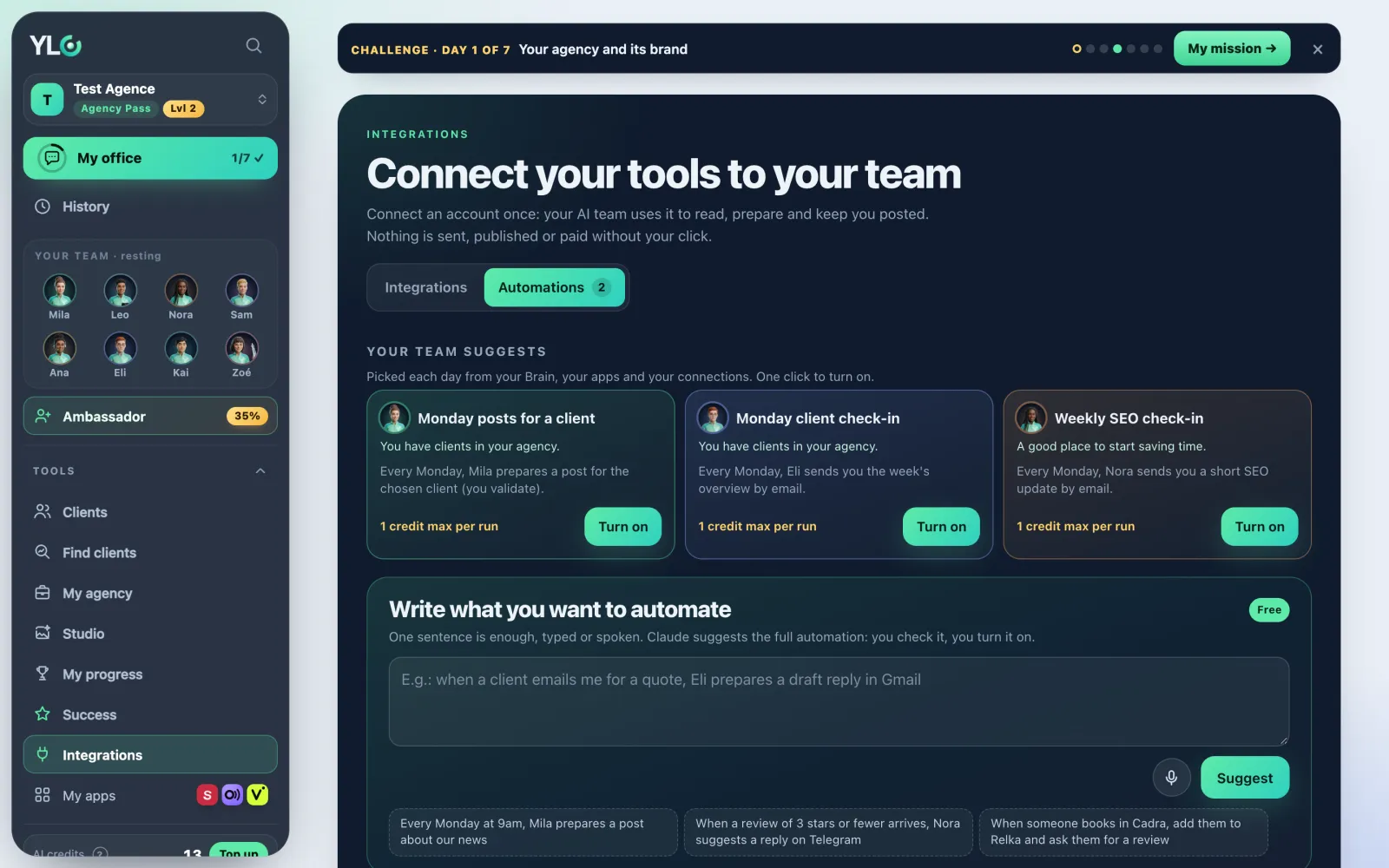
- The morning brief (Eli): every morning, Eli reads your accounts (quotes, reviews, pages, links) and suggests 1 to 3 actions, in your office and on Telegram if linked. Once it's on, pick the time in Time (your time zone), from 5 am to 12 pm.
- Your important emails, every morning (Eli): Eli lists the unread emails Gmail marks as important (last 24 hours), with sender and subject. No email is opened or marked as read. It needs Gmail: if it's not connected, tap Connect Gmail.
- The plan for the week (Eli): every Monday, each employee suggests 1 to 5 tasks. Nothing starts without your click.
- A Google review after each meeting (Nora): after a Cadra booking, Clama sends your client a Google review request, once per person every 90 days.
- A Google review after each sale (Nora): the same after a sale in your shop.
- Told as soon as a prospect reaches out (Sam, My agency space): when a prospect fills in your showcase, Sam tells you right away with their name, business and need. The prospect is already in My clients.
Both Google review recipes need your Clama listing with your Google review link. Otherwise the switch is greyed out: tap Set up in Clama.
At the start, the morning brief and the plan for the week are on. The others are off.
What it costs
Connecting a tool, switching an employee off or disconnecting costs nothing.
For automations, the price is written on each card:
- The morning brief: Free · 0 credits.
- Your important emails, every morning: Free · 0 credits, no AI.
- The plan for the week: Plan free. A task you approve costs its price, shown first.
- Both Google reviews: 0 credits · included in Clama.
- Told as soon as a prospect reaches out: Free · 0 credits.
If something goes wrong
- “The connection wasn't completed. Nothing was connected.”: you declined or closed the consent page. Start again with Connect in 1 click.
- “This connection link expired or was opened in another browser. Try again.”: start again from the same browser.
- “You were signed in with another YLC account when you came back.”: sign in with the right YLC account, then try again.
- “The connection page didn't open. Try again in a moment.”: wait a little, then try again.
- “Too many attempts. Try again in an hour.”: wait an hour.
- “This connection isn't open on YLC yet.”: this tool isn't available yet.
- “The setting wasn't saved. Try again.”: the switch went back to where it was. Tap it again.
- A card shows Reconnect: open the details and tap Reconnect.
See also
Did this article help you?
Thanks! Glad it helped.
Sorry about that. Write to us: a person from the team will answer. Write to us