Getting started
Your team settings
The week your team suggests, the tools you connect to it, Telegram, the morning brief and what it remembers about you, on one page.
On this page
In short: the My AI team page sets how your team works: its week, the tools it can read (Gmail, Google Drive, Notion…), Telegram, the morning brief and its memory. To talk to your team, go to your office.
Open the page
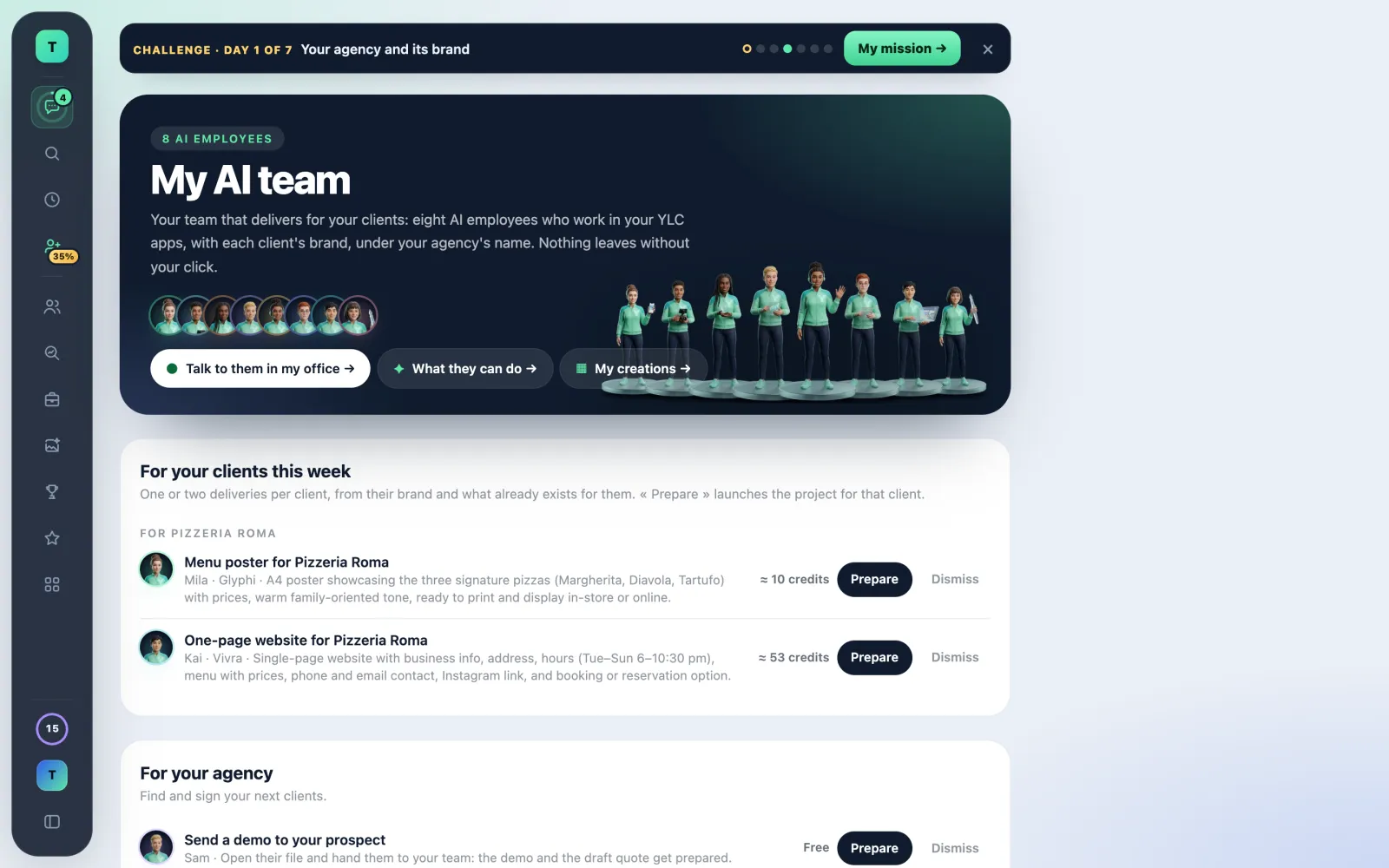
Open account.ylcnetwork.com/play/equipe?vue=outils. At the top, three shortcuts: Talk to them in my office, What they can do and My creations.
This week
Your team suggests a few tasks for the week, with their price.
- In Agency mode, they are sorted For your clients this week (client by client), then For your agency.
- Prepare starts the task with the right teammate. Nothing goes out without your OK.
- Dismiss removes it from the list.
Connected to your team
Connect a tool once: the teammates who need it use it. They read without asking, and tell you when they read. Anything that writes on your side (a draft, a row, an event) is shown to you first.
- Find the tool: Google Calendar / Outlook, Gmail, Google Drive, Google Sheets, Outlook, Zoho Mail, Google Docs, OneDrive, Notion, Trello, Instagram, Facebook Pages or Mailchimp.
- Tap Connect, then accept on Google, Microsoft or the tool's side.
- Back on the page, "Connected." confirms it, and the tool shows Connected.
- To cut it, tap Disconnect.
Tools marked Later can't be connected yet. If you connect two or more mailboxes, choose the one your team reads when you don't say which: Make main, or All mailboxes.
Your team on Telegram
Tap Link Telegram, then Open Telegram: a code valid for 10 minutes links your account. Everything is explained in Your team on Telegram.
The morning brief
Every morning, your team reads your accounts and suggests 1 to 3 concrete actions, in Eli's chat (and on Telegram if linked).
- Choose the time (from 5:00 to 12:00, your time).
- The On / Off button turns it on or off.
- Get it now prepares it right away.
What your team remembers
Your brand (My brand) stays their reference. Here you see what you told them in the chat, for example "no posts on Sundays". Tap Forget to erase a memory.
What it costs
- Connecting or disconnecting a tool, adjusting the page and erasing a memory: free.
- The morning brief: free, no credit and no free message used.
- Prepare a task: its price is shown next to it ("≈ … credits", "Free" or "In the app"), and the card shows it again before you validate.
If it doesn't work
- "Connection cancelled. Nothing was connected.": you declined on the tool's side. Start again with Connect.
- "This connection link has expired. Try again.": tap Connect again.
- "Signed in as someone else: nothing was connected.": come back with the right account.
- "Too many attempts. Try again later.": wait a little.
- A tool shows "Expired": connect it again.
- "Nothing to suggest right now: everything looks in order.": the brief found nothing to suggest.
- The page sends you to the Pass: your team works with a Pass.
See also
Did this article help you?
Thanks! Glad it helped.
Sorry about that. Write to us: a person from the team will answer. Write to us