Getting started
My office and your AI team
My office is the screen where you talk to your 8 AI employees: you write or dictate, the right employee takes it, and you are the boss.
On this page
In short: My office is your home screen. You write your request to the team, the right employee takes it, and anything that costs or goes public first comes as a card, with its price.
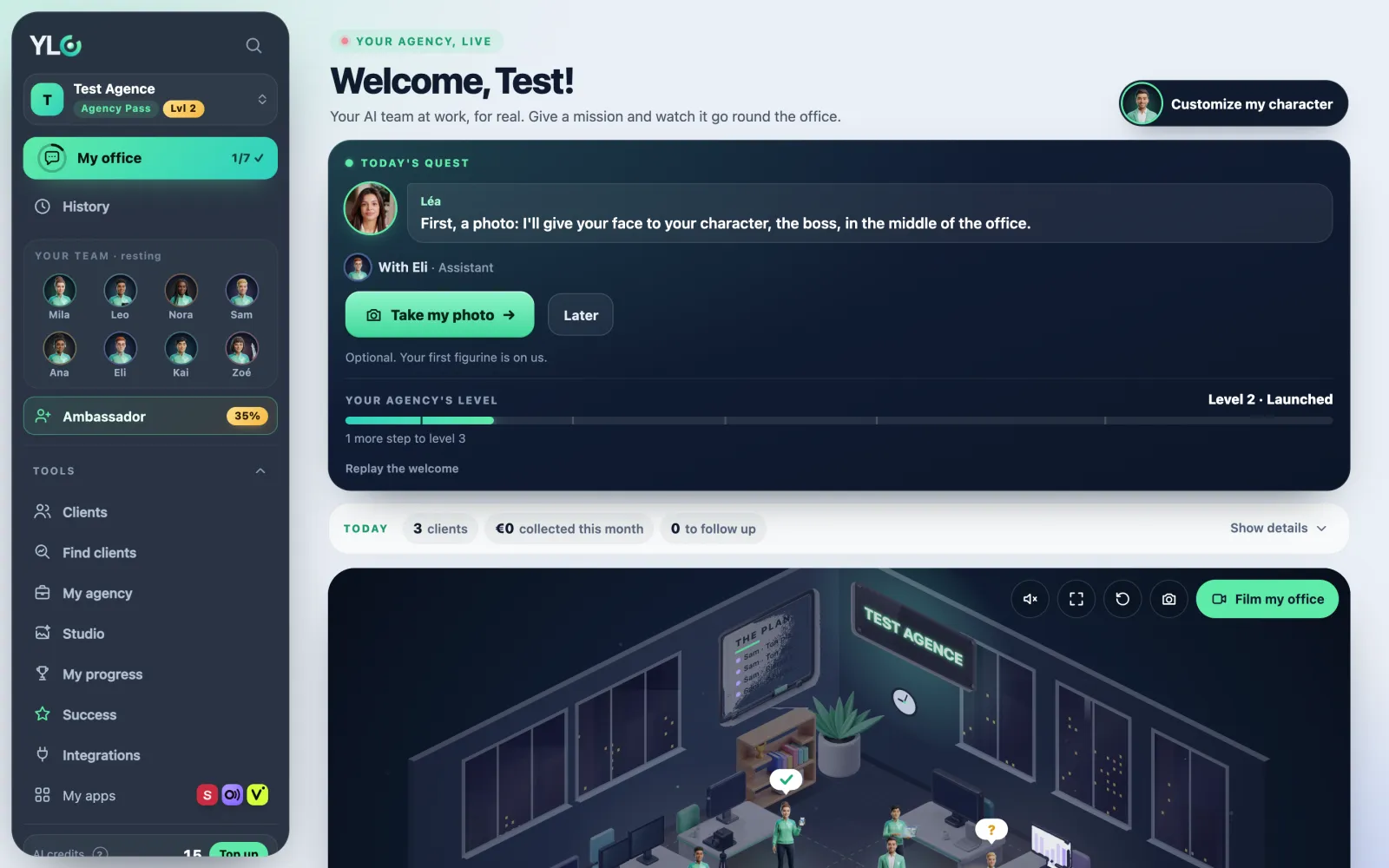
Your 8 AI employees
- Mila, community manager and designer: posts, stories, carousels, logos and visuals (Ondra, Tapio, Glyphi, Klipa).
- Leo, video maker: motion-design videos, UGC-style video ads, editing, screen recordings, Studio images and videos (Motiv, Tolka, Montra, Vezzo).
- Nora, SEO expert: Google listing and reviews, blog articles, your website's search ranking (Clama, Ancra).
- Sam, sales rep: prospects, follow-ups as drafts, your contacts (Relka, Semblo).
- Ana, receptionist: your booking page (Cadra). Phone and WhatsApp are not open yet.
- Eli, assistant: your calendar, your meeting notes (Memra), your draft emails.
- Kai, web designer: websites (Vivra), your link page (Straby), short links and QR codes (Lanzo).
- Zoé, copywriter: sales pages, newsletters, courses (Didra), YouTube ideas and scripts (Kinzo).
You are the boss
In the middle of the office, your character carries the line "You · the boss". You give the missions, the team shares them out.
- Tap Customize my character.
- Choose your first name, silhouette, style, outfit, hair, skin tone and jacket colour. You can start from a photo of your face (optional).
- Tap Create my character.
Your first name changes for free, and your first figure is free. Everything is explained in You, the boss: your name and your figure.
Make a request
- Write in Your request to the team (or dictate it), or tap a shortcut under Ask in one click. See all shows everything the team can do.
- Tap Send. The right employee answers in the conversation.
- If they need a few details, they ask you questions you answer in a tap. See Why the team asks me questions.
- The action comes as a card with its price: Validate, Modify or Cancel.
Posts stay as drafts, a new website stays private until you publish it, and follow-ups and emails stay as drafts: you send them.
History
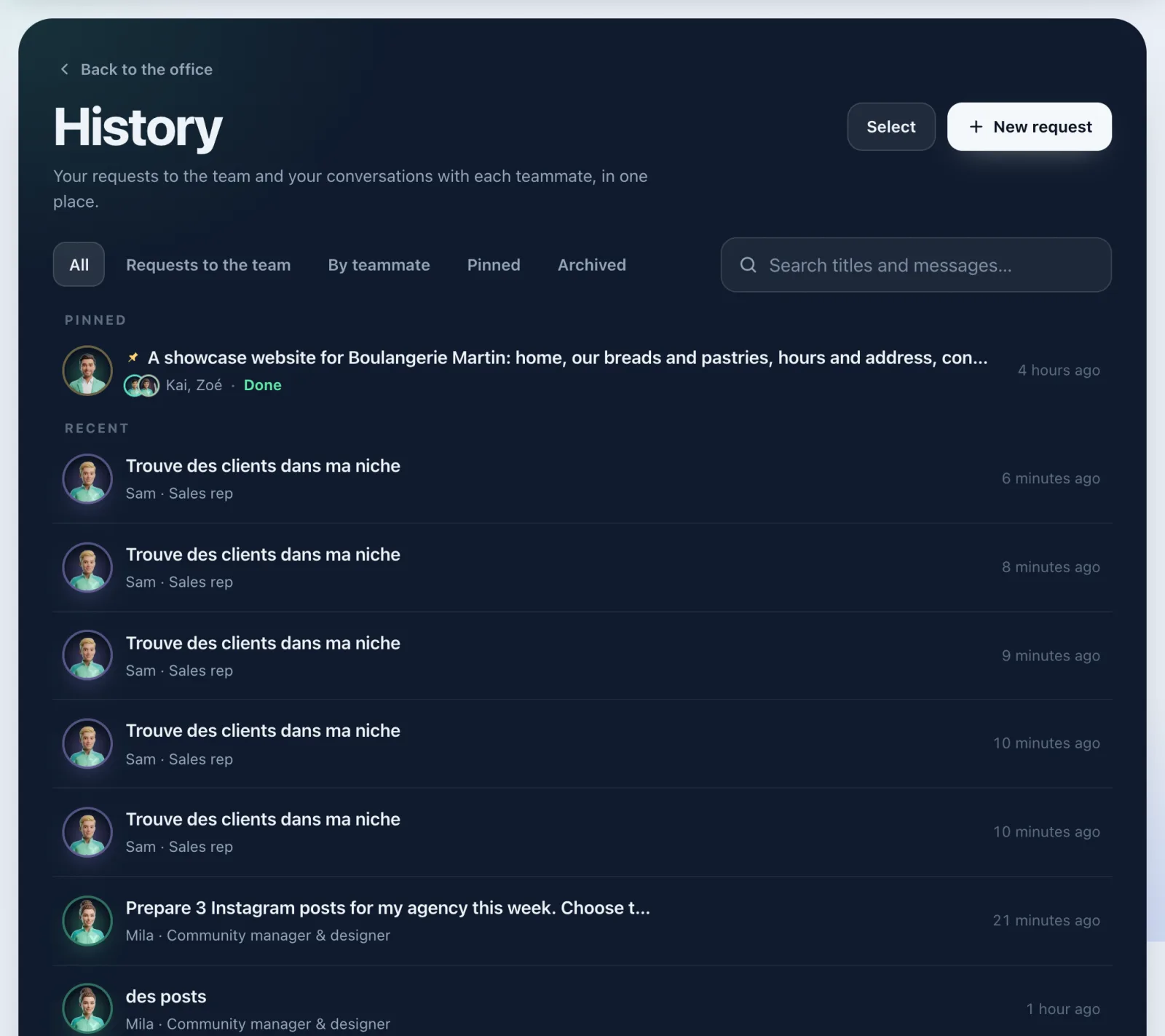
In the sidebar, History keeps your requests to the team and your conversations with each teammate. You can search, filter by teammate, Pin, Archive or Delete. See History.
Film your office
- In the office scene buttons, tap Film my office.
- Check Mission shown in the film: your latest real mission is already written in. You can put another one.
- Tap Make the video. An 18-second vertical video is made, ready for TikTok, Reels and Shorts.
- Tap Download the MP4 or Share.
The Photo button saves a picture of your office to your Downloads.
What it costs
- Messages: 100 messages to your team are free every month, then 1 credit per message. The price of a paid message is shown before you send it.
- The work: each card shows its exact price before you validate.
- Your character: the first one is free, once per account. The next ones are paid in credits, price shown before anything is charged and refunded if it fails.
- Filming your office and Photo: no credits, everything is made in your browser.
If it doesn't work
- "This browser can't make the video.": open the page in Chrome, Edge or Safari 17+.
- "Your free messages for this month are used: this one costs 1 credit.": your message goes for 1 credit, or wait for next month.
- "Not enough YLC credits. Nothing was charged.": tap Top up.
- "Too many messages in a short time.": try again in a few minutes.
- "Your team is resting right now.": try again in a moment.
- "This client's Brain is too empty to do good work." (My agency): complete the client's Brain, nothing was charged.
See also
Did this article help you?
Thanks! Glad it helped.
Sorry about that. Write to us: a person from the team will answer. Write to us