Getting started
Use YLC from Claude or ChatGPT
Connect your YLC account to Claude or ChatGPT with one address, and use your YLC apps from your conversation.
On this page
In short: in Claude or ChatGPT, add a custom connector with the address https://account.ylcnetwork.com/mcp, sign in to YLC and tap Allow.
Connect it
- In Claude or ChatGPT, add a custom connector with this address:
https://account.ylcnetwork.com/mcp - Sign in with your YLC account (email and six-digit code).
- The YLC screen tells you what the app will be able to do. Tap Allow.
What it can do
- See your YLC credits and Pass, and read your YLC apps: videos, websites, designs, links, bookings, contacts and inbox, meeting notes, courses, recordings.
- Create for you in your apps: videos, UGC ads, websites, designs, social post drafts, short links, stories, Studio images and videos, video ideas and scripts, course drafts, rewritten texts, contacts.
What it never does
It never deletes anything, never publishes or sells for you, and never sends a message on your behalf. It never sees your payments or your email. A Memra note-taker joins a meeting only when you confirm it.
What it costs
Connecting is free. What it creates is paid in YLC credits, and it always tells you the price before spending.
Disconnect it
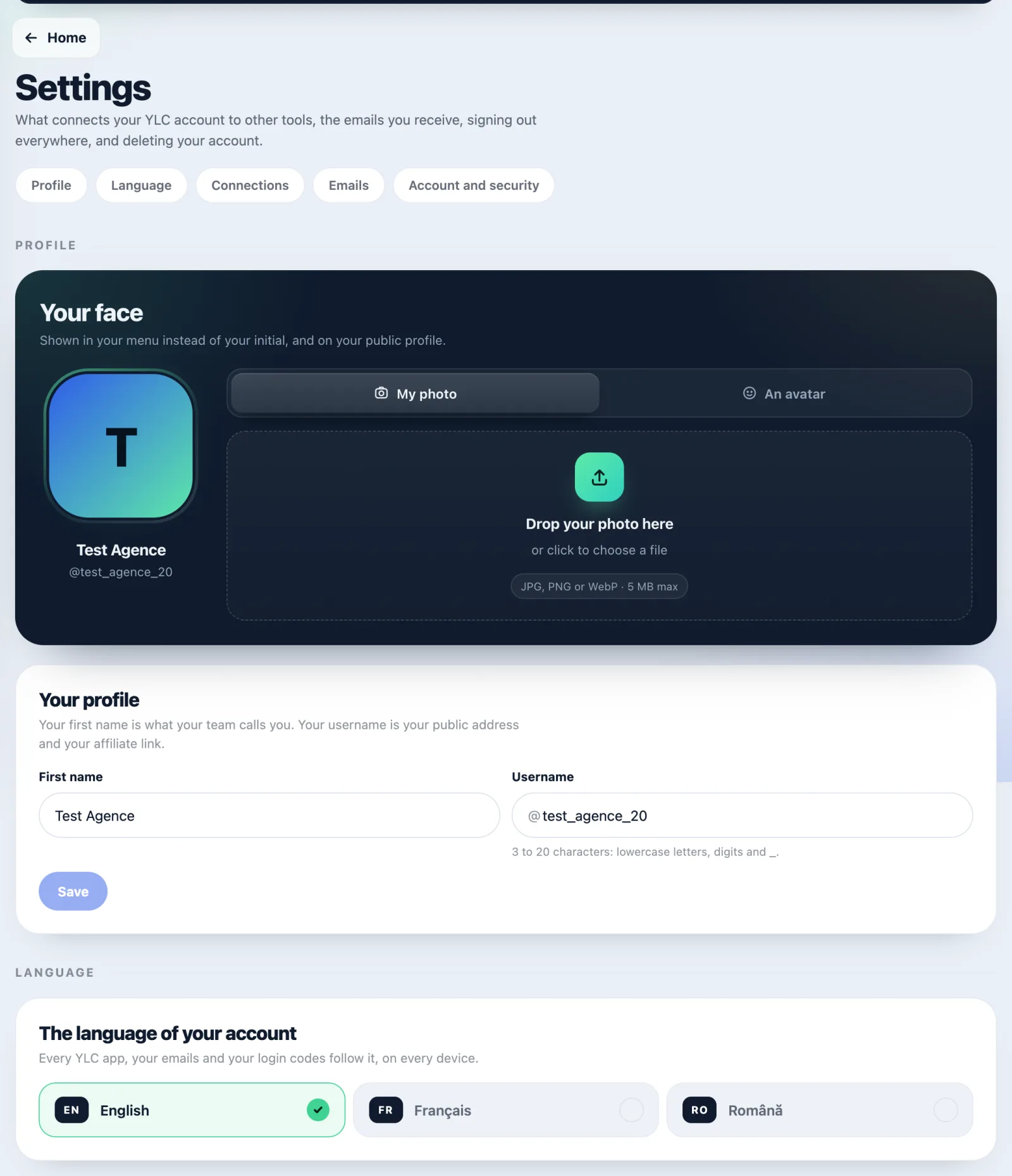
- Open your account menu, then Settings.
- Go to Connections, AI connectors card.
- Tap Disconnect next to the app.
If it doesn't work
- "This connection request has expired or was already used.": go back to Claude or ChatGPT and connect again.
- The screen mentions an app running on your computer: only allow it if you just started this connection yourself.
See also
Did this article help you?
Thanks! Glad it helped.
Sorry about that. Write to us: a person from the team will answer. Write to us