Getting started
Open the apps
Every YLC app opens with your account, already signed in. Here is where to find them and which ones need a Pass.
On this page
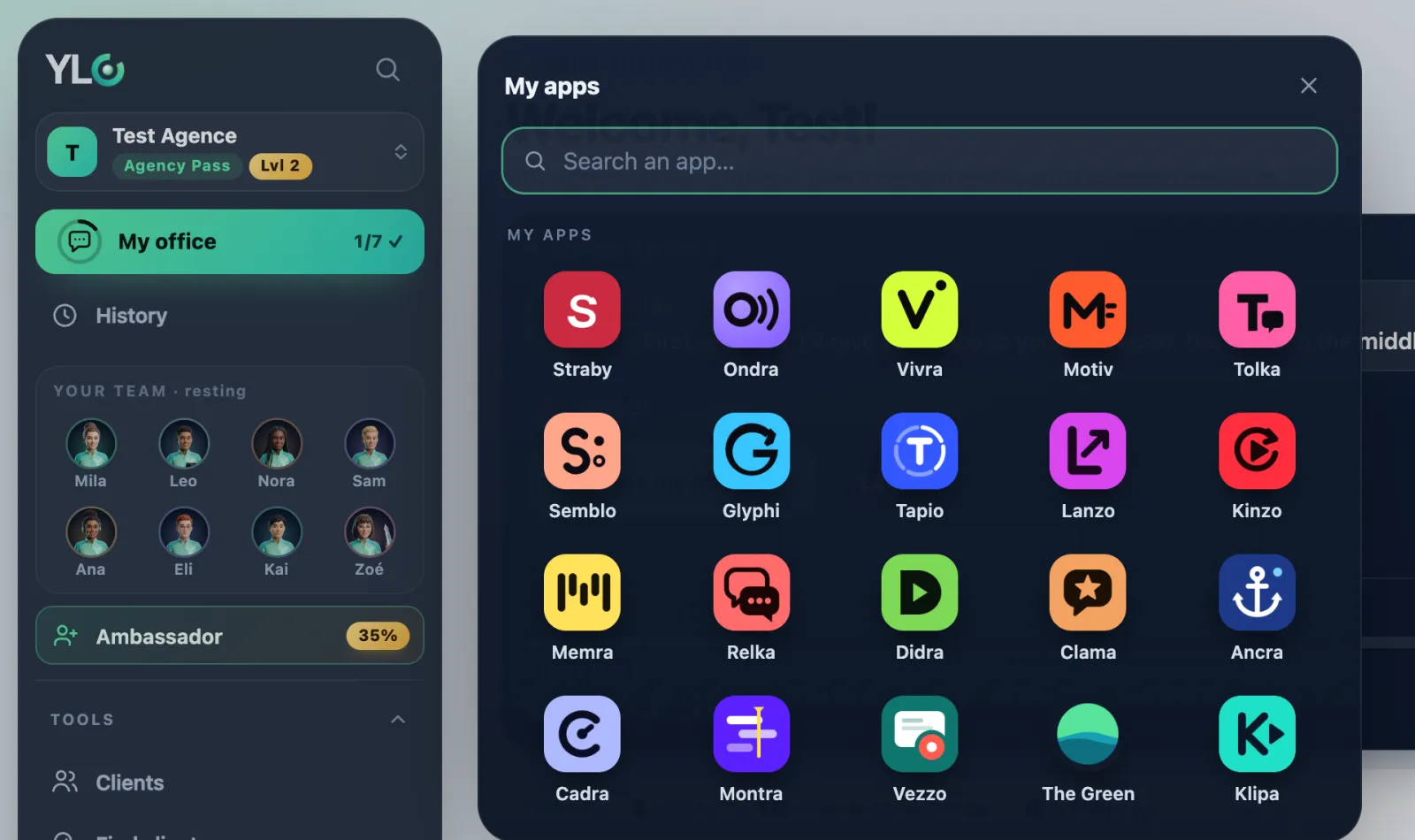
In short: in the sidebar, open Tools, then My apps, and tap an app: it opens already signed in. Or just ask the right employee in your office.
From your account
- In the sidebar, tap Tools.
- Tap My apps. The panel shows all your apps, with Search an app… and the Recently opened apps.
- Tap an app: it opens, already signed in to your account.
On a phone, first tap Menu to open the sidebar.
The All apps page
On account.ylcnetwork.com/play/equipe?vue=apps, All apps shows every app with its name, sorted by what you deliver: Websites and pages, Logos and visuals, Video, Social media, Sales and bookings and Others.
- At the top, the Studio card: tap Open the Studio.
- Under each app, the teammate who uses it ("With Mila", "With Kai"…).
- Tap Open: the app opens in a new tab, already signed in.
From the app's address
Most apps live on <app>.ylcnetwork.com, for example vivra.ylcnetwork.com or cadra.ylcnetwork.com. Sign in with your YLC account: it's the same account everywhere. The Green lives on thegreen.today.
What it costs
- The Green and Straby open without a Pass (Straby as a limited free version), and Klipa is open to clippers.
- Every other app is included in the Business Pass, the Agency Pass and the Founder Pack.
- What you create in an app is paid in credits, price shown first.
If it doesn't work
- You don't see My apps: without a Pass, the sidebar shows the Unlock your whole team card instead.
- An app shows "With a Pass": it opens with a Pass.
- The app asks you to sign in: use the same email address as your YLC account.
- An app is marked coming soon: it isn't open yet (phone and WhatsApp, for example).
See also
Did this article help you?
Thanks! Glad it helped.
Sorry about that. Write to us: a person from the team will answer. Write to us