The apps
Cadra
Your booking page, linked to Google Calendar or Outlook: people pick a time, and the same hour is never booked twice.
In short: Cadra gives you a booking page that looks like you. People pick a time, Cadra writes it into your calendar and sends confirmations and reminders. Ana, your AI receptionist, handles it with you.
What Cadra is for
- A public page with your name, photo, links and meeting types (a 15-minute call, a one-hour appointment…).
- Visitors see free times in their own time zone.
- Every booking goes into your Google Calendar or Outlook, with a Meet or Teams link when the matching calendar is connected.
- Reminders go out on their own 24 h and 1 h before. The guest gets a link to reschedule or cancel.
- Ana, your receptionist in My office, can prepare your page and meeting types for you. A page prepared by the team stays a draft until you have reviewed it.
Create your page in 5 steps
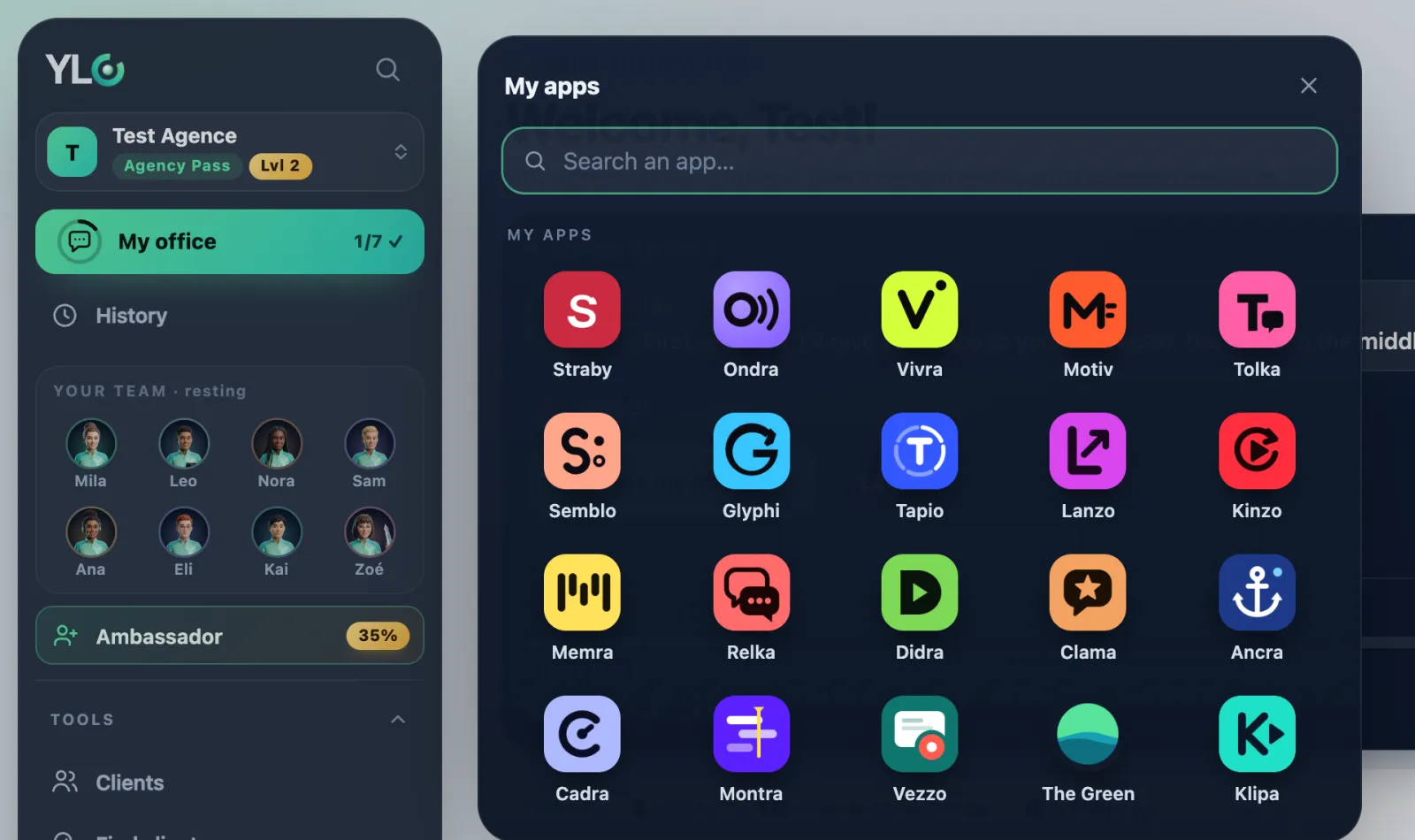
- In your YLC account, tap My apps (the grid icon in the bar), then Cadra. You can also go to cadra.ylcnetwork.com.
- Click Create my booking page. The editor has three steps: Layout, Profile, Calendars. Move between them with Continue.
- In Profile, fill in your Name, One line about you, Your page address (click Check to see if it is free) and Your time zone.
- In Calendars, click Connect next to Google Calendar or Microsoft 365 / Outlook. You connect it once, in your YLC account, and it works for every app. Then click Publish my page.
- Open Meeting types, click New meeting type, set the Length, Location and Weekly hours, turn on On your page, then click Save.
To share your page, use Copy link or View my page.
What it costs
No credits: Cadra is included in your Pass, and booking is free for your visitors.
If it doesn't work
- "Someone just took this time. Pick another one.": two people aimed for the same hour. Cadra never double-books: the guest picks another time.
- "This time is too soon" or "This time is too far ahead.": these are your Minimum notice and Bookable up to rules, in the meeting type.
- "This page has no meeting type yet.": create a type and turn on On your page.
- A booking lands on an event in your calendar: your calendar isn't connected. Click Connect a calendar in Calendar.
- "Cadra is included in the Agency Pass.": your Pass is no longer active. Your page, types and bookings are kept and come back as soon as your Pass is active. Until then, your public page is not visible.
See also
Did this article help you?
Thanks! Glad it helped.
Sorry about that. Write to us: a person from the team will answer. Write to us