The apps
The Studio and My creations
Create images and videos with the best AI models, and find everything your team delivered, on one page.
On this page
In short: the Studio creates images and videos with the best AI models. Right below it, My creations keeps everything you generated and everything your AI team delivered.
Open the Studio
In your YLC account bar, click Studio. At the top, the tool to create. Below, My creations.
Who handles it: you, directly. Leo, your team's video maker, uses it too when you ask him for an image or a video in My office.
Create an image or a video
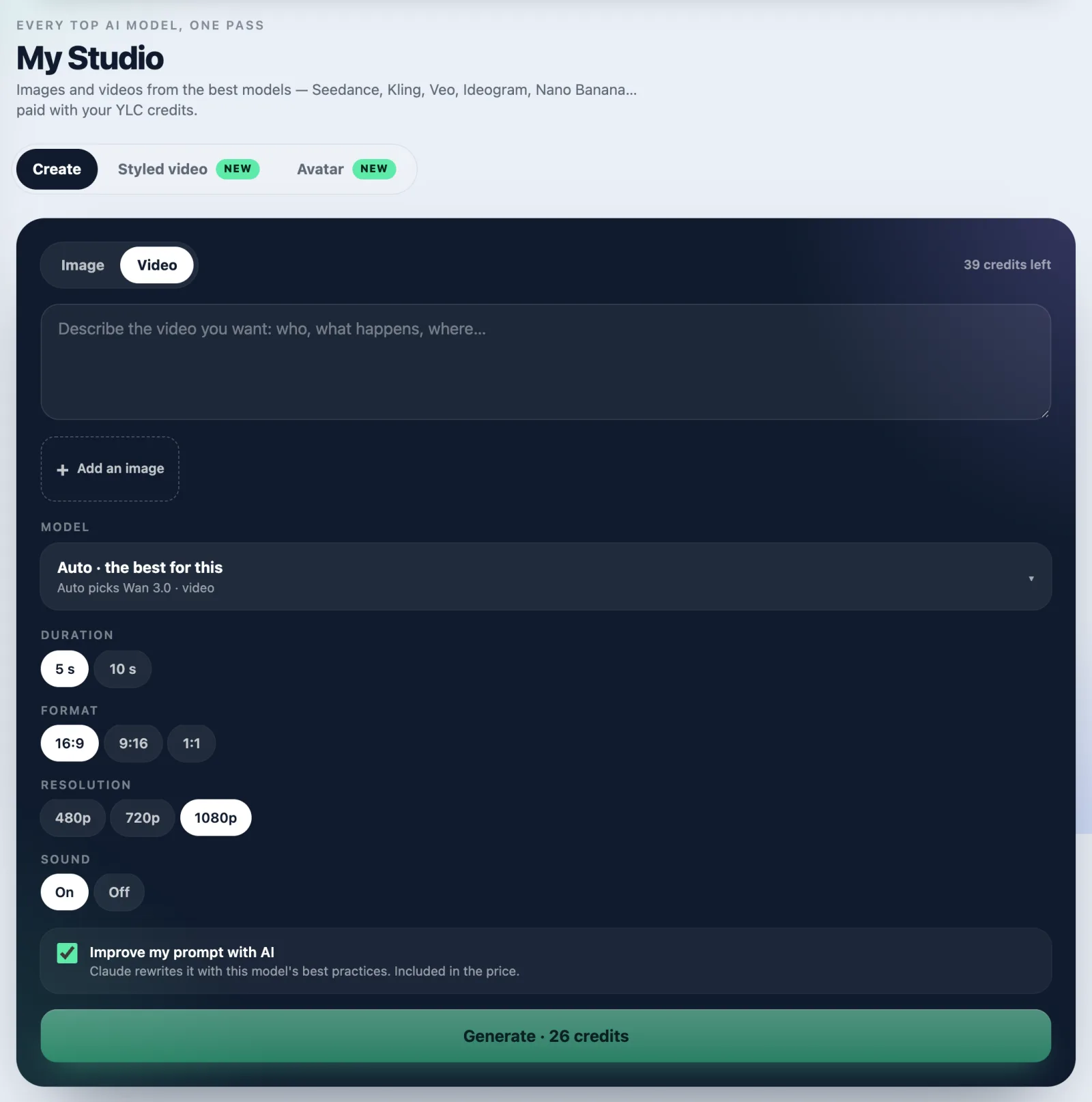
- In the Create tab, choose Image or Video.
- Describe what you want in the text box.
- Keep Auto (it picks the best model for your request) or click Choose a model.
- Set the format, length or quality if you want. You can add a Reference image.
- Tick Improve my prompt with AI if you want your description rewritten for that model.
- Click Generate. The button shows the exact price in credits.
The result appears at the top of the page, then in My creations. Depending on your account, other tabs may show, like Styled video or Avatar.
Find your creations
Below the tool, My creations brings the Studio and your team together.
- Source: All, Team or Studio.
- Filter by type: carousels, visuals, videos, sites, links, posts, audio.
- Client (in Agency mode): one client's creations only.
- Search finds a client, a title or a prompt.
On each creation: Download, Copy link, Open in the app that made it, Do it again (the request goes back into the employee's chat, nothing is sent) or Reuse the prompt (the Studio fills in, nothing starts).
Your older projects
- The old My creations address brings you here, under the Studio, with your filters.
- Your projects (account.ylcnetwork.com/play/equipe/projets) lists every project launched with your team, newest first. Tap Open to find its final page (the .zip kit, site, page, stories, prints).
- A project from the former full launch opens for reading: its deliverables are below. For what comes next, ask your team in your office, one deliverable at a time.
What it costs
- The Studio is included in your Pass. Each creation is paid in credits, depending on the model, length and quality.
- The exact price is written on the Generate button before you start.
- Improving your prompt is included in the price shown.
- A creation never costs more than 1,000 credits.
- If a creation fails, your credits are given back.
If something goes wrong
- "Not enough credits. Top up to continue.": top up in Credits, in your account menu.
- "The Studio needs an active Pass.": without a Pass, you see the models and their prices, but nothing starts. Click Choose a Pass.
- "Six creations are already in progress. Wait for one to finish.": six creations at most at the same time.
- "Write a prompt first.": the description box is empty.
- "Above 1,000 credits: shorten it or lower the resolution.": choose a shorter video or a lower quality.
- "The model could not start. Your credits were refunded.": try again, or choose another model.
- The reference image won't upload: use a JPG, PNG or WebP under 20 MB.
See also
Did this article help you?
Thanks! Glad it helped.
Sorry about that. Write to us: a person from the team will answer. Write to us