The apps
Montra
The video editor in your browser: timeline, templates, music, animated captions, AI Clips and MP4 export.
In short: Montra is a full video editor that runs in your browser, nothing to install. You edit, add text, music and captions, and export to MP4 on your device. Leo, your AI video maker, can prepare a project from a template for you.
What Montra is for
- A multi-track timeline, in Vertical, Square or Landscape.
- Templates: replace the clips with your own.
- Royalty-free music, text, effects, background removal, AI voice-over.
- Animated Auto captions.
- AI Clips: a long video cut into short vertical clips.
- Leo, your video maker in My office, prepares a project from a template and can send your Vezzo videos to it.
Your first video
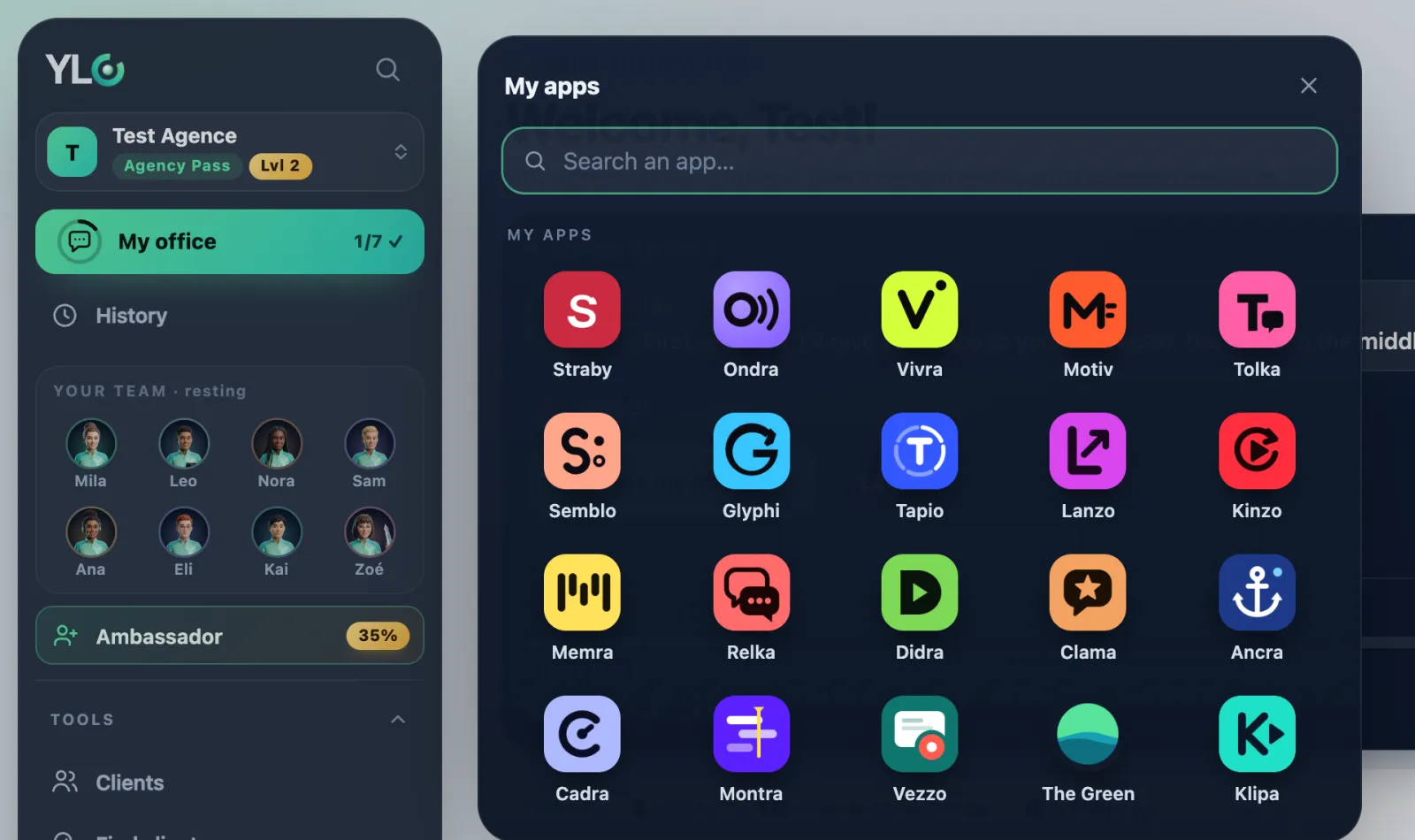
- In your YLC account, tap My apps, then Montra, or go to montra.ylcnetwork.com.
- Click New project and pick the format. Or click Start from a template, then Use.
- Drop your videos, photos or music, or use the timeline's + button: Video or photo, Text, Music, Captions.
- For captions, open Captions, pick the language and style, then click Generate captions. You can fix every word for free.
- Click Export, choose the Quality (720p or 1080p), then Export MP4. Keep the tab open until Your video is ready, then click Download MP4.
In the editor, Help then Take the tour starts the guided tour again.
What it costs
- Editing, importing, exporting: no credits.
- Auto captions: 1 credit per started minute of sound.
- AI voice-over: 2 credits per 1,000 characters.
- Background removal: 1 credit for a photo, 7 credits for 5 s of video (30 s at most).
- AI Clips: 11 credits for 10 minutes of video, captions included.
- Auto short video without speech: free (30 a day).
Each AI tool shows its price first. If it fails, your credits come back.
If it doesn't work
- "This browser can't encode video.": use a recent Chrome, Edge or Safari (16.4+).
- "The export stopped.": try again; if a clip can't be read, re-import it as MP4.
- "We hear no voice in your video, so nothing was charged.": check your video's sound.
- "This file is too big": 2 GB at most per file.
- "Your library is full.": remove some media (25 GB with your Pass).
- "Montra is included in the Agency Pass.": your Pass is no longer active. Your projects are kept.
See also
Did this article help you?
Thanks! Glad it helped.
Sorry about that. Write to us: a person from the team will answer. Write to us