Troubleshooting
I didn't get my sign-in code
What to check when the six-digit code doesn't arrive, and what the messages on the sign-in screen mean.
In short: the code usually arrives within seconds and is valid for ten minutes. Check your spam, check the address, then ask for a new code and use the latest one.
Check, in this order
- Wait a minute, then look in your spam folder or the Promotions tab. The email comes from noreply@ylcnetwork.com.
- Check the address shown under "Code sent to…". A typo sends the code elsewhere. Tap Use a different address to fix it.
- Ask for a new code: tap Use a different address, type your address again, then Send my code. Always use the latest code: it expires after ten minutes.
- Paste the code with Paste the code, then tap Sign in.
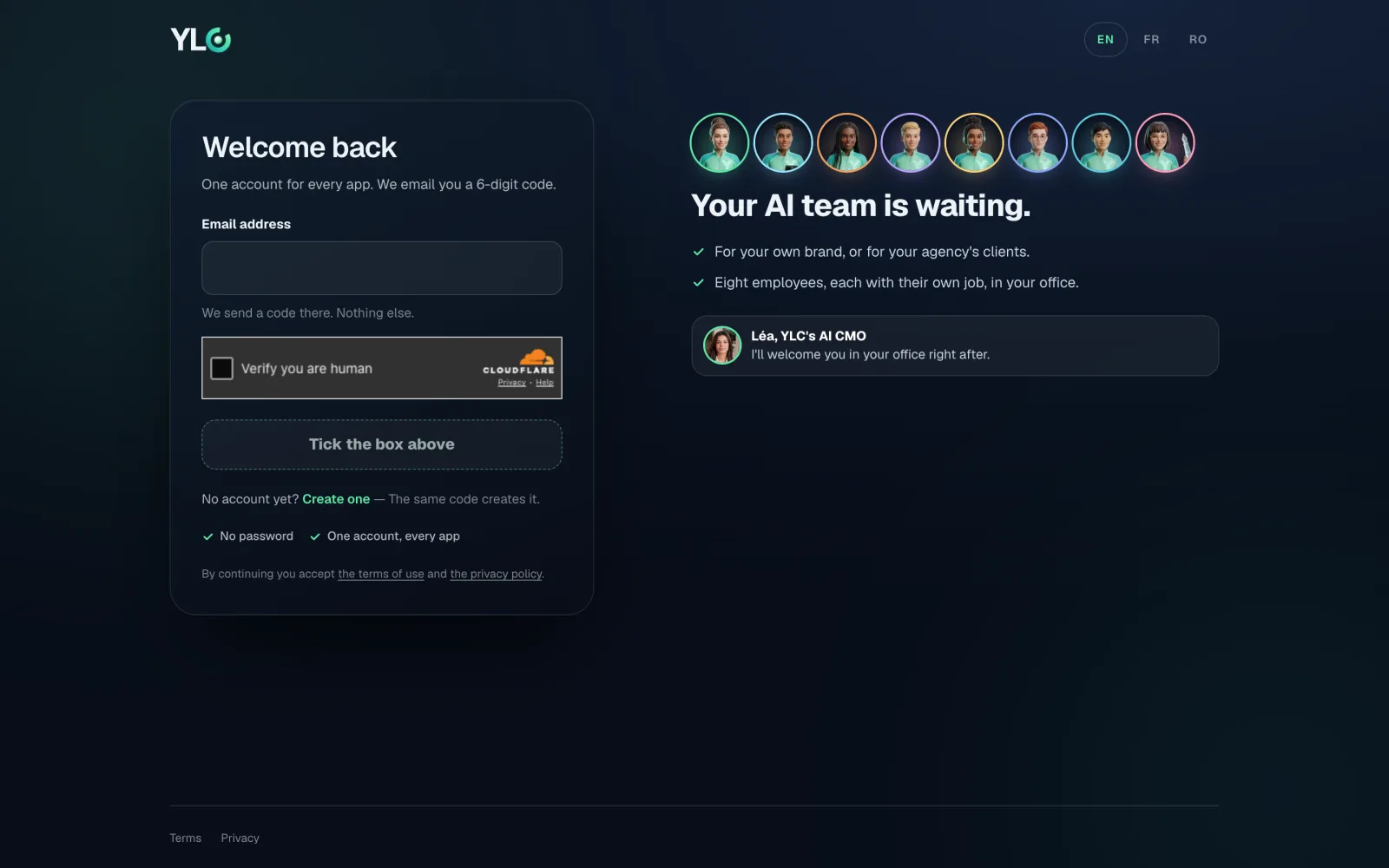
The messages on the screen
- "That code is wrong or has expired.": ask for a new code and type the latest one.
- "Enter the six digits from the email.": the code has six digits, no spaces.
- "Too many attempts. Wait a few minutes, then try again.": too many codes asked in a row. Wait a little.
- "This looks like a temporary address.": disposable addresses are refused. Use an address you keep.
- "The anti-robot check didn't go through": reload the page, or try on Wi-Fi.
- "Could not send the code. Try again.": try again in a moment.
Still stuck?
Write to support@ylcnetwork.com with the email address you used.
See also
Did this article help you?
Thanks! Glad it helped.
Sorry about that. Write to us: a person from the team will answer. Write to us