Sign in Start free

App guide · Get seen

Straby

Your pro page: all your links in one place.

Straby gives you a page in your name, with your links, your services and the contacts who reach out to you. Kai, your AI web designer, can build it for you.

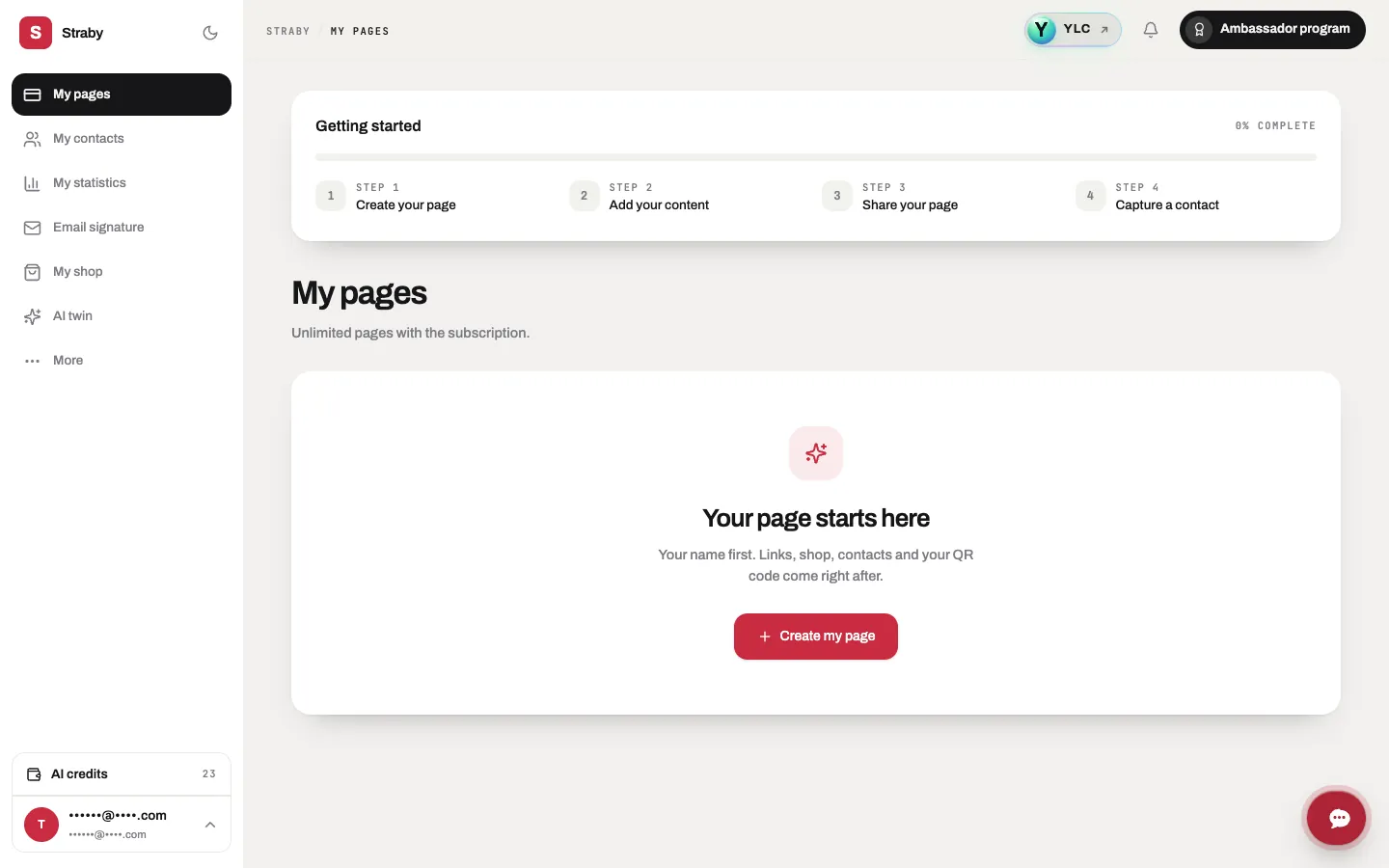
Straby, on screen

The home screen of Straby

What you can do

For your business

  • A page in your name with your links, your socials and what you sell.
  • A QR code to print on your card or your counter.
  • The contacts of people who swap details with you.

For your agency and your clients

  • Each client's link page, prepared by Kai and put online when they approve.
  • Your agency showcase (set up in YLC, under My agency).
  • A QR code per client for their flyers and shop windows.

Who handles it in your team

Kai Web designer

Kai creates your link-in-bio page, paused and invisible until you publish it, or updates the texts of the page you already have.

Ask in your office

  • “Set up my link page”
  • “Update the bio on my page”

Your first result, step by step

Create your page yourself

  1. Open Straby: click your photo at the bottom of the bar, then Straby under Other YLC apps. You can also go to straby.ylcnetwork.com.
  2. Click Create my page.
  3. Type your name, then click Create page.
  4. Add your photo, your links, your colours. Each change saves on its own: wait until the label shows Saved.
  5. Click Preview to see your page as a visitor does.

What it costs

  • Without a Pass: one page, statistics for the last 7 days and 3 readable contacts.
  • With a Pass: as many pages as you want, all your contacts, full statistics.
  • AI images in Straby use no credits: you get 15 a month, and Straby shows how many you have left. AI videos use your YLC credits: the price shows next to the button before you start.

Go further

Online guide: ylcnetwork.com/aide/guides/straby · Updated 21 October 2026

Can't find your answer?

A person from the YLC team answers in the chat.

Write to us