Sign in Start free

App guide · Sell and follow up

Memra

Your meeting notes, without taking notes.

Memra joins your Google Meet, Zoom or Teams meeting, transcribes it and gives you a summary, the decisions, the tasks and a follow-up email. Eli, your AI assistant, can send it for you.
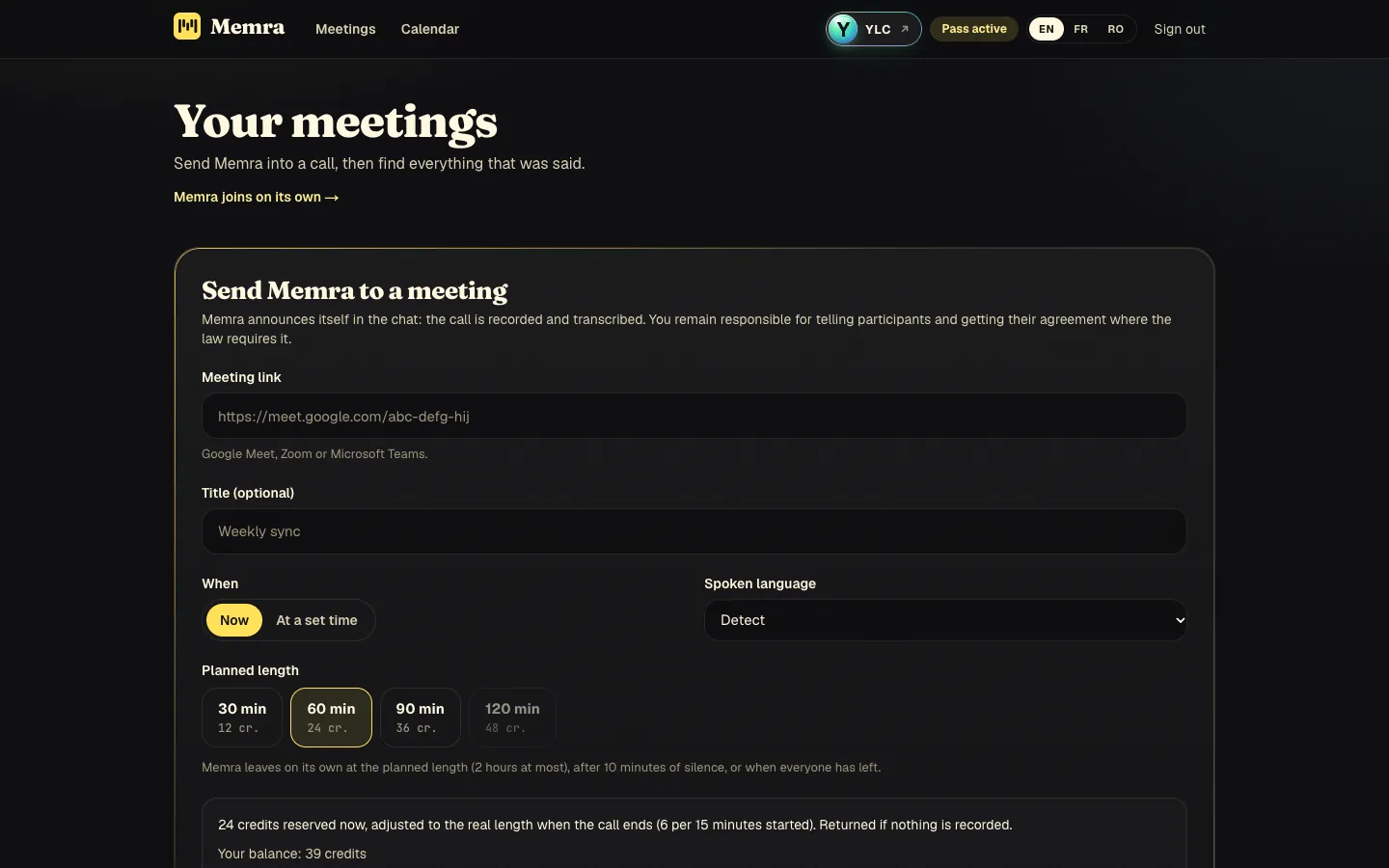
Memra, on screen

The home screen of Memra

What you can do

For your business

  • Summary, decisions and tasks from each Meet, Zoom or Teams meeting.
  • A follow-up email ready to copy.
  • Search your past meetings.

For your agency and your clients

  • Notes from your client meetings, ready to share.
  • The decisions of a kick-off meeting, so nothing is forgotten.
  • Eli sending Memra to the meetings in your calendar.

Who handles it in your team

Eli Assistant

Eli sends Memra's note-taker to your Google Meet, Zoom or Teams meetings, then gives you the summary, the decisions and the action items. Participants are told the meeting is recorded.

Ask in your office

  • “Send the note-taker to my 3pm meeting”
  • “What did we decide on Tuesday?”

Your first result, step by step

Send Memra to a meeting

  1. Open Memra: click My apps, then Memra.
  2. Click Send Memra to a meeting.
  3. Paste the Meeting link (Google Meet, Zoom or Microsoft Teams).
  4. Choose Now or At a set time, then the Planned length and the Spoken language (or Detect).
  5. Click Send Memra.
  6. In your meeting, let Memra in from the waiting room.

When the status turns to Ready, open the meeting to read your notes. Copy the follow-up email: Memra never sends anything for you.

What it costs

Memra is included in your Pass.

  • 6 credits per 15 minutes started.
  • Credits are reserved when you send it, then adjusted to the real length. You never pay more than the price shown.
  • Returned if nothing is recorded.
  • Reading, searching, exporting and rewriting the notes: included.

Go further

Online guide: ylcnetwork.com/aide/guides/memra · Updated 21 October 2026

Can't find your answer?

A person from the YLC team answers in the chat.

Write to us